Lab 4 - Use the Meeting Quality Assistant
Time: 75-105 min
Start the prepared custom MCP server that wraps the Webex Meeting Qualities REST API, use it to troubleshoot a seeded meeting, then inspect the reusable skill already in your workspace.
Architecture note
The official Webex Meetings MCP server provides meeting lifecycle and intelligence tools, but it does not expose media-quality telemetry. Quality data comes from a separate REST API.
In this lab that API is wrapped by a custom MCP server the lab provides at src/quality-tool/server.py (source). Your agent speaks MCP to it, and it speaks REST to Webex on your behalf. This is the pattern you will use whenever an agent needs data from a non-MCP source. See MCP vs. REST API.
Phase 1 - Set up the quality MCP server
4.1 Generate a personal access token
The Meeting Qualities API requires the analytics:read_all scope and an org admin account. The simplest way to get a token with this scope is a personal access token.
- Go to developer.webex.com and sign in with the Webex user from Session_Info.txt on the pod desktop.
- Click your avatar → My Personal Access Token.
- Copy the token. It is valid for 12 hours and includes all scopes for your account.
Personal access tokens
Personal access tokens grant full access to your account. In production you would use a scoped OAuth integration instead. This is a lab shortcut. Never commit a token to version control.
4.2 Inspect and start the prepared server
The LAB-11161 workspace already has src/quality-tool/server.py, its Python environment, and a webex-meeting-qualities entry in .vscode/mcp.json. VS Code starts the prepared server and prompts you for the token from step 4.1.
- In VS Code Explorer, expand src → quality-tool and locate
server.py. Expand .vscode and openmcp.jsonto see the preconfigured quality server.
If VS Code offers to install the Python extension when you open server.py, you may dismiss that suggestion. It is optional for editing Python and is not needed to run this prepared MCP server.
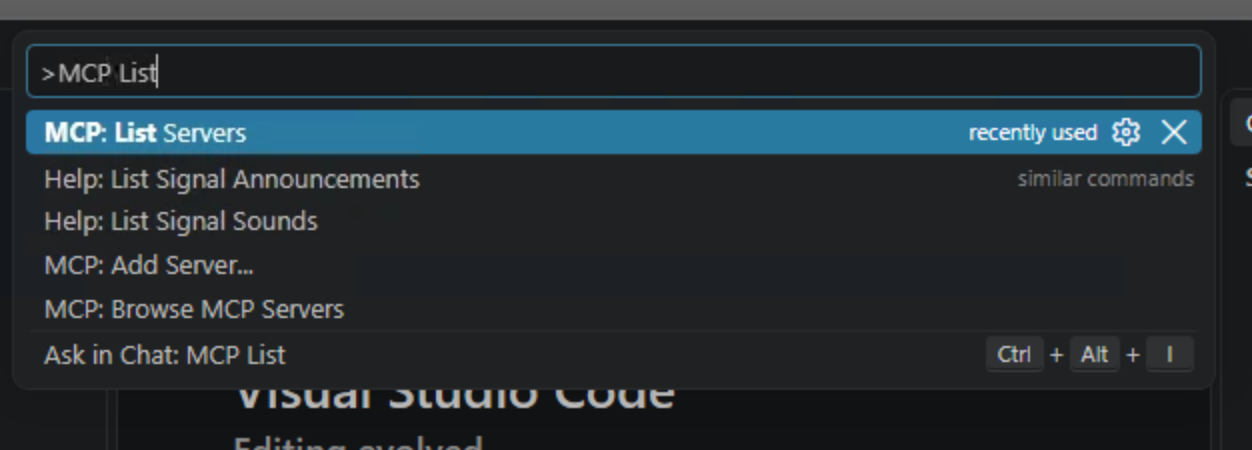
- Press Ctrl+Shift+P to open the Command Palette, type
MCP: List Servers, and select it.
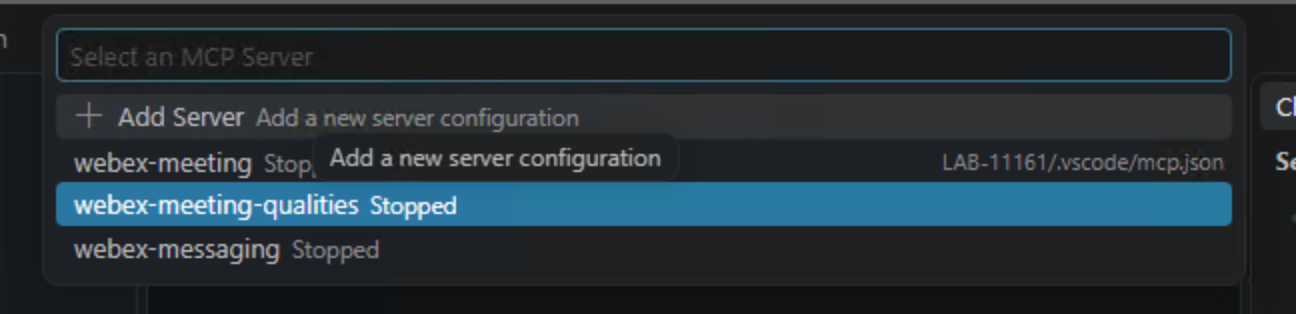
- Select webex-meeting-qualities from the server list.
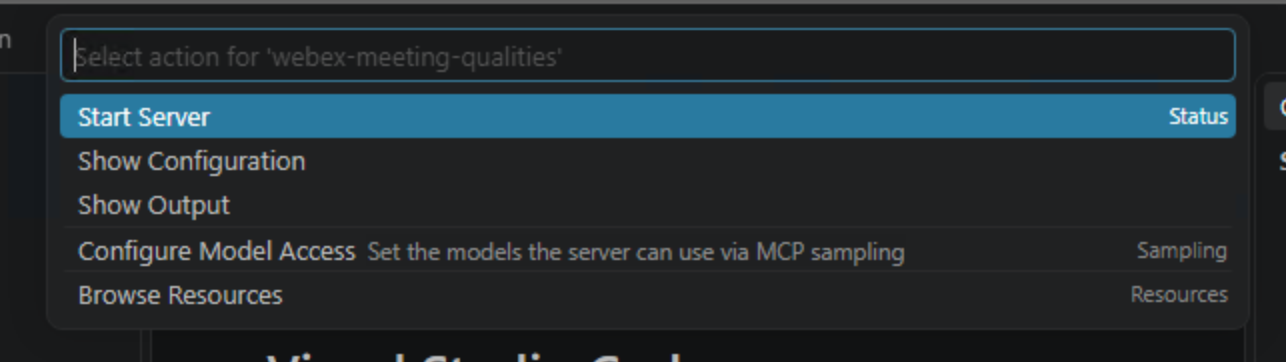
- Choose Start Server. If the server is already running, continue to step 6.
- When VS Code asks for the Webex Meeting Qualities developer token, paste the personal access token from step 4.1 and press Enter. Paste only the token; do not include
Bearer. The input is hidden.

- From the server's menu select Show Output, or open View → Output and choose
MCP: webex-meeting-qualities. Confirm startup finishes and the output shows Discovered 1 tools. In Copilot Chat, select Configure Tools beside the model and confirm theget_meeting_qualitiestool is enabled. The separatemeeting-qualityskill appears under Configure Skills.
VS Code may label the FastMCP banner and update notice as [warning] [server stderr]. Those lines alone are not a failure if the server starts and its tool is discovered. If initialization does not finish or the tool is missing, ask a proctor. Do not install a FastMCP update during the lab.
Where the token goes
VS Code passes the token you enter to the local quality-server process as WEBEX_DEVELOPER_TOKEN. The server uses it when calling the Webex Meeting Qualities REST API over HTTPS. Keep the token out of chat messages and source files.
Notice the different transport
The official Webex MCP servers are remote http URLs. VS Code launches this quality server locally using uv and the stdio transport. Inspect the two forms in the prepared .vscode/mcp.json and read MCP Transports for the tradeoffs.
4.3 Know the API's limits
The server inherits the constraints of the underlying API. These matter during the exercise:
| Constraint | Value |
|---|---|
Data availability |
Roughly 10 minutes after a meeting starts |
Retention |
7 days |
Rate limit |
1 request per 5 minutes per meeting instance ID |
Required scope |
analytics:read_all |
Required role |
Org admin, with Pro Pack licensing |
Important
Because of the rate limit, do not let the agent retry a failed call in a loop. One call, then read the error.
Phase 2 - Interactive quality troubleshooting
4.4 Find the target meeting
Prompt the agent
- Confirm it found New Images Review, rather than Daily Brief. The former has the intentionally degraded media stream.
4.5 Get quality data
Prompt the agent
- The agent should resolve the meeting ID from the Meetings MCP server, then pass it to
get_meeting_qualities. - Confirm it returns per-participant quality data.
4.6 Analyze the data
Prompt the agent
- Does the output clearly separate facts from guesses?
- Are confidence levels reasonable?
- Does it acknowledge missing or incomplete data?
Read the data_gaps field
The server returns an explicit data_gaps list. Webex reports some metrics as empty arrays and others as -1 placeholders meaning "not measured." The server flags both so the agent cannot mistake a missing measurement for a real value of zero.
4.7 Generate recommended checks
Prompt the agent
- Good recommendations are grounded in the data, not generic checklists.
4.8 Practice failure handling (if time allows)
Test the server with an invalid meeting ID:
Prompt the agent
The agent should:
- Report the failure instead of inventing quality data.
- Distinguish authentication failures (
401/403) from missing or invalid meeting data (404). - Avoid repeated calls because the API is rate-limited.
- Recommend checking the meeting instance ID, token validity, admin role, Pro Pack licensing, and the data-availability window.
The server never raises
get_meeting_qualities always returns the same shape with an error string set, rather than throwing. That gives the agent something structured to reason about instead of a stack trace.
4.9 Review the incident summary
Prompt the agent
- Review the draft. Would you send this to your network team?
- Ask for edits if needed.
4.10 Create an Incident Mode space
Before pasting the prompt, read the exact Domain value in Session_Info.txt on your pod desktop. Replace [Estelle email] with esteele@<your pod domain> and [Kyle email] with kmelby@<your pod domain>. Do not leave the placeholders in the prompt.
Prompt the agent
- Review the exact responder emails and domain before approval. Do not copy a domain from someone else’s pod.
- Approve the space, two memberships, and message as separate write actions. Then switch to Webex App to confirm the restricted space, members, and summary.
Privacy
Do not expose full participant quality records to a broad space by default. Use aggregated findings and a restricted responder space unless your organization explicitly permits detailed sharing.
4.11 Post a follow-up update (if time allows)
Prompt the agent
- Confirm the reply appears as a thread reply in Webex, not a new top-level message.
Phase 3 - Review the preloaded quality skill
4.12 Inspect the reusable workflow
The workspace already contains .github/skills/meeting-quality/SKILL.md and .github/skills/incident-mode/SKILL.md. In VS Code Explorer, open both. Find where the skills require meeting ID lookup, evidence-backed metrics, separate observations and hypotheses, data_gaps, restricted membership, and approval before writes.
Ask the agent to explain skill creation
- You are reviewing an existing reusable artifact rather than recreating it. The capstone will exercise both skills together.
- Confirm the skill treats the quality API as a separate data source and never turns unmeasured values into zero.
What this proves
A local MCP server can expose a REST API to an agent, while a skill captures the repeatable reasoning and review steps around that tool. The token remains outside the chat, and Webex write actions still require your approval.
Checkpoint
You are ready for Lab 5 when:
- [x] The custom quality MCP server is running in VS Code and its tool is enabled in Copilot Chat
- [x] The agent retrieved and analyzed quality data for a meeting
- [x] Observations were separated from hypotheses with confidence levels
- [x] Unsupported claims were removed from the reviewed incident summary
- [x] The agent clearly attributed metadata to MCP and telemetry to the quality server
- [x] An incident space was created only after your approval
- [x] You inspected the preloaded quality and incident-mode skills and mapped them to this workflow